Welcome to iPhoneAppDev. We're a small dedicated team of mobile and web app developers.
We’re based in the UK and in the Charente, France.
Our services

Native Mobile App Design/Development
We make applications natively for both Android and iOS in Kotlin / Java and Swift / Objective C. We can also develop using React Native and Flutter for cross platform solutions.
App Design
Do you have an idea for an app but not sure how to progress?
We can go through the design process with you and help you to determine the best User Interface and flow for your app. Alternatively our knowledge and experience in Apps can help to re-affirm your own designs.
App development
Don’t know if you should start with Android or iOS or want just one development thread?
Whether you want native or cross platform we can develop your app, and any associated back end application. Following on from the design we will perform an iterative, interactive process to ensure the resulting app performs as desired. We can also test and submit your app to store as required.
support and maintenance
Don’t want to add all your functionality at the beginning? Worried about what happens after your app is launched?
All of the apps we develop are automatically covered for support and maintenance for a period of time following acceptance/submission to store. Extended support and changes/additions can be negotiated as required to help keep your app current and compliant.

Website Design/Development
We make websites using WordPress or Ruby on Rails depending on the client requirements. We use React to develop highly interactive User Interfaces. We can help you to determine your best solution.
Built From Scratch
Do you want a unique website to fit your business?
We can create purpose-built websites for any business. With experience in a range of technologies we can design and build to your requirements.
Choose a Premade Template
Are your website requirements simple? Do you want to keep the costs to a minimum?
We have a range of high quality, high performing templates to enable a faster and lower cost alternative for your website. The website content, colours etc would still be unique for your business and essential components such as ecommerce, blogs, downloads and call to action can all still be included.
content strategy / social media promotion
You have a website but don’t have the time or knowledge to promote it?
We can help keep your website alive and current. With assistance in social media promotion and blogging we can help to drive visitors to your site to help improve your business and reap a return on your investment.
OUR Process

Define
Our discussions on your requirements will help us to understand your business needs.

Design
We will produce interactive designs to ensure we are creating what you require.

Refine
Our whole process is built on communication with you, our client and refining the design until you are happy.

Build
The resulting website or app will be built and tested against the agreed functionality and in accordance with efficiency and maintenance principles
Featured Work
APP design
Gemporia
We built two native applications (iOS/Android) for a TV Jewellery channel. The applications allowed user to watch live TV and bid on the current item being shown.
Website Development
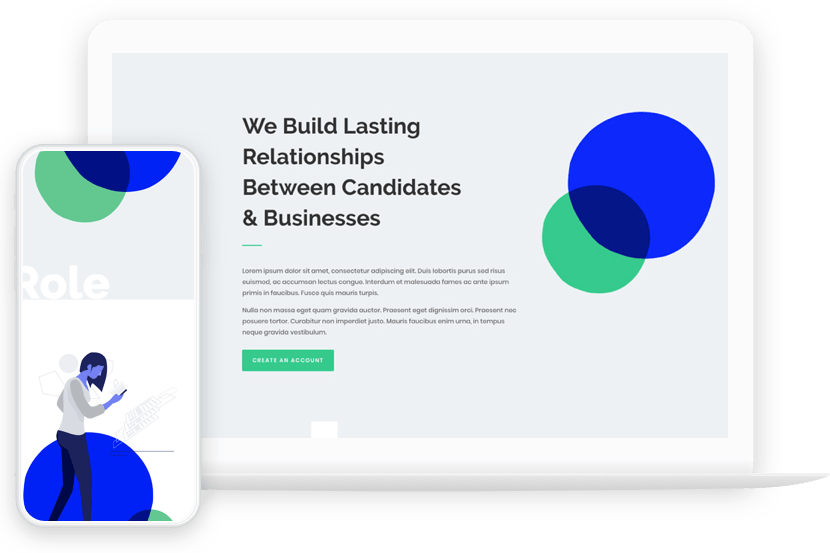
Bespoke websites or based on WordPress architecture
About US
Hello! We’re Organise Ltd. We’ve been building mobile apps and websites for over 12 years.
We started our technology company in 2006 and soon realised that our knowledge of operating systems and mobile in particular could be hugely beneficial for building smartphone apps.
Now over a decade later we still maintain a small, totally in-house company whilst ensuring we are at the forefront of mobile technology.
Cross Platform Development – Options and Risks
It seems each day another company releases a cross platform development environment to allow "Joe (Tech) Public" to develop a smartphone app. However none of them are the golden ticket that their hype would have you believe. Some are aimed at a subset of smart phones...
Apps Are Not Just For The Big Boys
Hands up how many people own a smart phone? How many of those remaining believe they will own a smartphone in the next year or so? How many with a smartphone, or hoping for one in the near future, run their own business? Now those with their hands still up how many...
Technology in the Midlands
On business and social media sites such as Ecademy, LinkedIn and Twitter I often see networking events, conferences and meetings arranged for technology companies and contractors for the London area. Having had some contact with the North West region as well, I am...